FastCompressor App
Offline batch compression
This isn't a "which tool is better" argument. TinyPNG is genuinely good at what it does.
What it doesn't do well is scale. And for a lot of teams — agencies, ecommerce ops, photographers, developers — scale is the entire problem.
Here's a direct comparison of the two workflows across realistic image volumes.
The Core Workflow Difference
TinyPNG is an upload-compress-download loop:
- Go to tinypng.com (or call the API)
- Drag your files (up to 20 per session on free tier, higher limits on paid API)
- Wait for upload + server-side compression
- Download a ZIP
- Unzip, sort files back into the right directories
- Repeat for next batch
Desktop batch compression (FastCompressor) is a local process:
- Drag your folder into the app
- Click Compress
- Done — files are compressed in-place, folder structure preserved
The difference sounds simple. The time implications compound at scale.
Time Cost by Volume
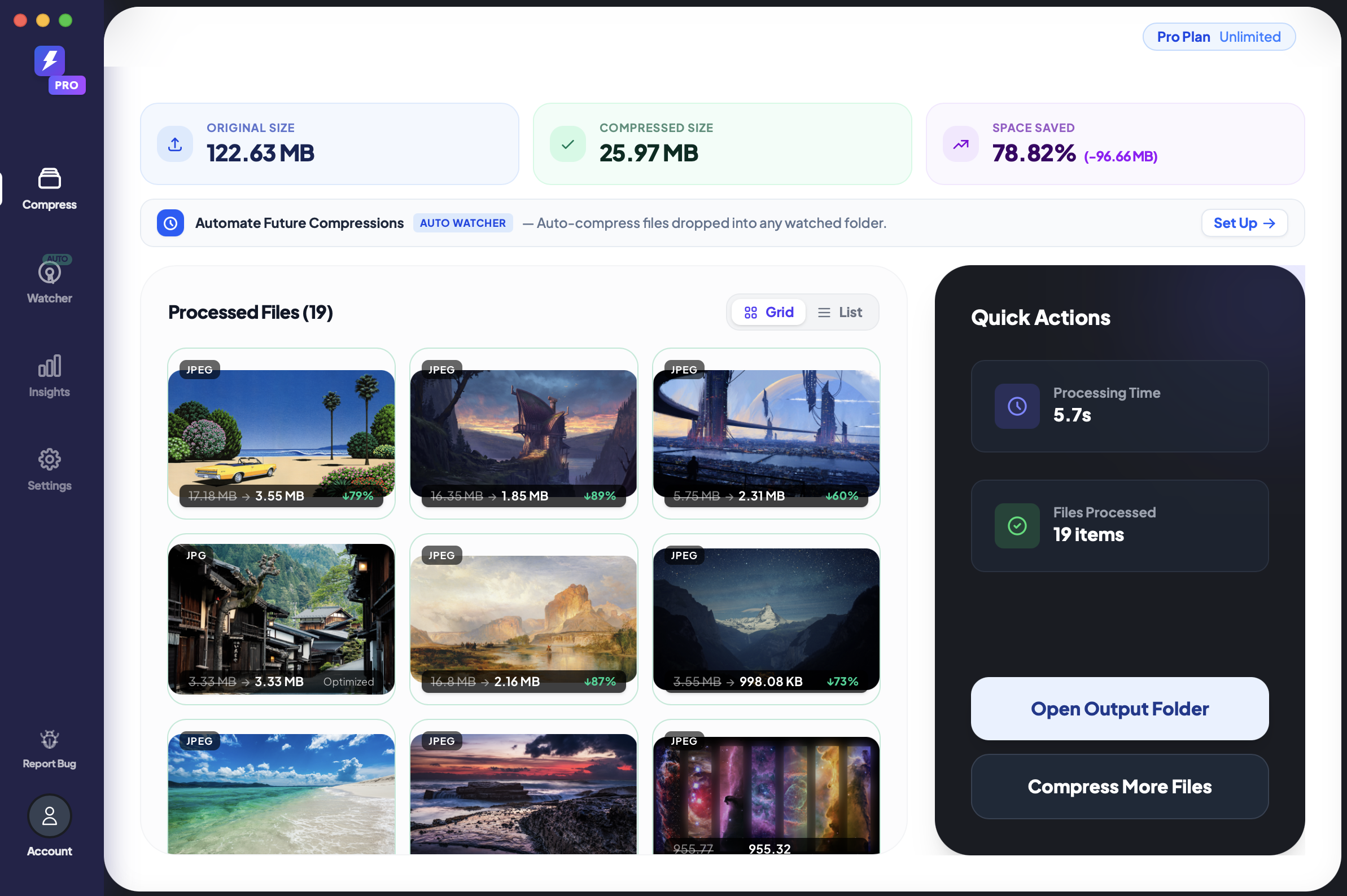
We modeled the upload-based workflow assuming a fast 50 Mbps upload connection and TinyPNG's server-side processing speed. Compared against our real benchmark of 1,120 images processed locally.
| Volume | TinyPNG Free (20/batch) | TinyPNG API (automated) | Local Desktop |
|---|---|---|---|
| 10 images | ~2 min (1 batch) | ~45 sec | ~15 sec |
| 100 images | ~20 min (5 batches) | ~5 min | ~45 sec |
| 1,000 images | ~3–4 hours | ~45 min | ~5 min |
| 10,000 images | Not practical | ~7–8 hours | ~45–50 min |
At 10 images, TinyPNG is fine. The overhead is small and the tool is right there in your browser.
At 1,000 images, the gap is 36×–48× in favor of local processing — and that's assuming you're using the paid API, not the manual web interface.
The 20-Image Cap: What It Actually Means in Practice
TinyPNG's free web interface limits you to 20 files per drag-and-drop session. That's not a soft suggestion — it silently drops files beyond the limit.
For a folder of 200 product images, that's 10 manual upload sessions. Each one requires:
- Re-opening or refreshing the page
- Dragging the next 20 files
- Waiting for the progress bar
- Downloading the ZIP
- Moving the files to the right directory
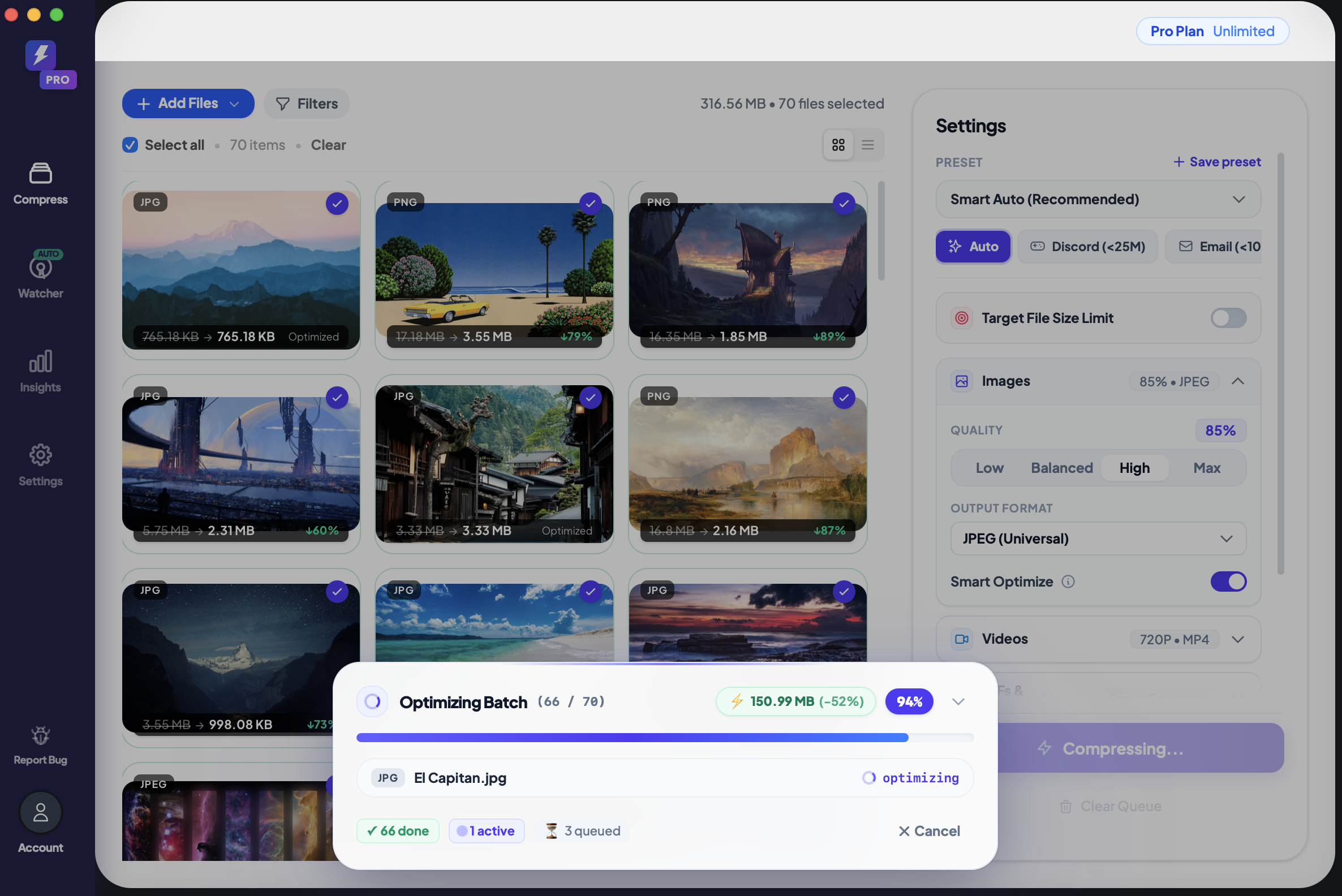
A mid-batch job of 70 images at the 94% mark with local processing just keeps running — no intervention required:
The TinyPNG API ($25/month or ~$39/year for the Shrink API) removes the manual steps but introduces integration overhead — API keys, rate limits, script maintenance, and error handling.
Folder Structure: A Real Workflow Difference
When you download a batch ZIP from TinyPNG, you get a flat archive of compressed files. You then have to:
- Unzip
- Match each file back to its original subdirectory location
- Replace the originals manually
For a flat folder of 20 product shots, this is manageable.
For a structured directory tree — an ecommerce catalog organized by category, or a client project with assets sorted by section — you're manually re-organizing dozens of subfolders after every batch run.
Local desktop compression processes files in-place and preserves the folder hierarchy exactly. Your directory structure after compression looks identical to before — just smaller files.
Privacy: The Use Cases Where Upload Isn't an Option
For some workflows, sending files to a third-party server isn't a preference. It's blocked:
Client work under NDA: Many agency contracts explicitly prohibit sharing client assets with third parties. Uploading to a compression server — even a trusted one — can be a contract violation.
Legal and medical: Law firms, medical practices, and anyone handling regulated data (HIPAA, GDPR, SOC 2 environments) cannot send patient or client files offsite for processing.
Corporate security policies: Enterprise environments with strict data classification often block external file transfers for anything marked internal or confidential.
Personal privacy: The question "where do my files go when I upload them?" is reasonable. TinyPNG's privacy policy covers compression but the files do touch their infrastructure.
Local processing has a simple answer to all of these: the files never leave your machine. Not "we delete them after 24 hours." Never transmitted.
Recurring Workflows: The Hidden Time Cost
Most compression comparisons measure one-time, manual batch runs. The bigger efficiency gap appears in recurring workflows.
Scenario: You're a designer who exports new Figma assets every day. 20–50 new PNG files land in an /exports folder every morning.
With TinyPNG, your routine includes:
- Open browser tab
- Drag today's exports
- Wait for upload + compression
- Download ZIP
- Sort files back into place
With Folder Watch mode, this workflow is: nothing. The folder is watched. Files are compressed as they arrive.
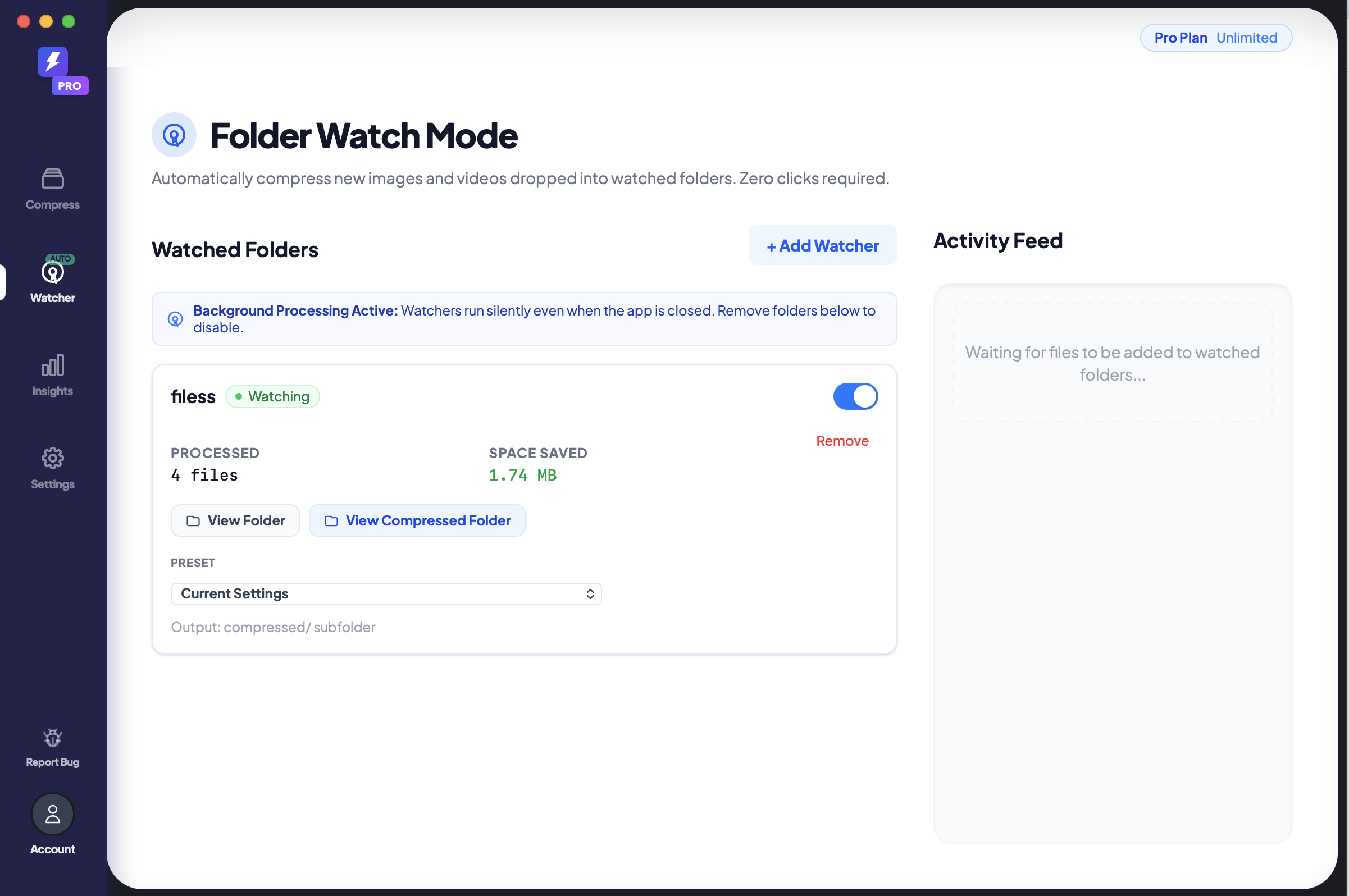
Over 5 working days, Folder Watch saves roughly 30–60 minutes of manual overhead per week. Over a year, that's 26–52 hours — from a one-time configuration that takes 30 seconds to set up.
Format Support: A Practical Difference
TinyPNG supports PNG and JPEG. That's its core scope, and it does both well.
FastCompressor supports a broader set:
| Format | TinyPNG | FastCompressor |
|---|---|---|
| PNG | ✓ | ✓ |
| JPEG / JPG | ✓ | ✓ |
| WebP | — | ✓ |
| AVIF | — | ✓ |
| HEIC / HEIF | — | ✓ |
| TIFF | — | ✓ |
| GIF | — | ✓ |
| Video (MP4, MOV, etc.) | — | ✓ |
If your workflow includes WebP assets (common for web teams), HEIC photos from iPhones, or TIFF files from raw editing workflows — you need a different tool regardless of the volume question.
Cost Over Time
| Plan | Cost | Limit |
|---|---|---|
| TinyPNG Free | $0 | 20 images/month, 5 MB/file |
| TinyPNG Shrink API | From $39/year | 500 free/month, then pay-per-use |
| TinyPNG Pro | ~$25/month | Higher quotas, larger files |
| FastCompressor | $19 one-time | Unlimited images, unlimited file size |
At TinyPNG Pro rates, the break-even point against FastCompressor's lifetime license is less than one month.
For API usage at scale (1,000+ images/month), the cost advantage for local processing compounds significantly over any billing period longer than a few weeks.
Settings Control: How Much You Can Tune
TinyPNG's compression is largely opaque — you upload, it compresses, you get the result. There's no quality slider, no format conversion control, no per-file override.
FastCompressor gives you explicit control:
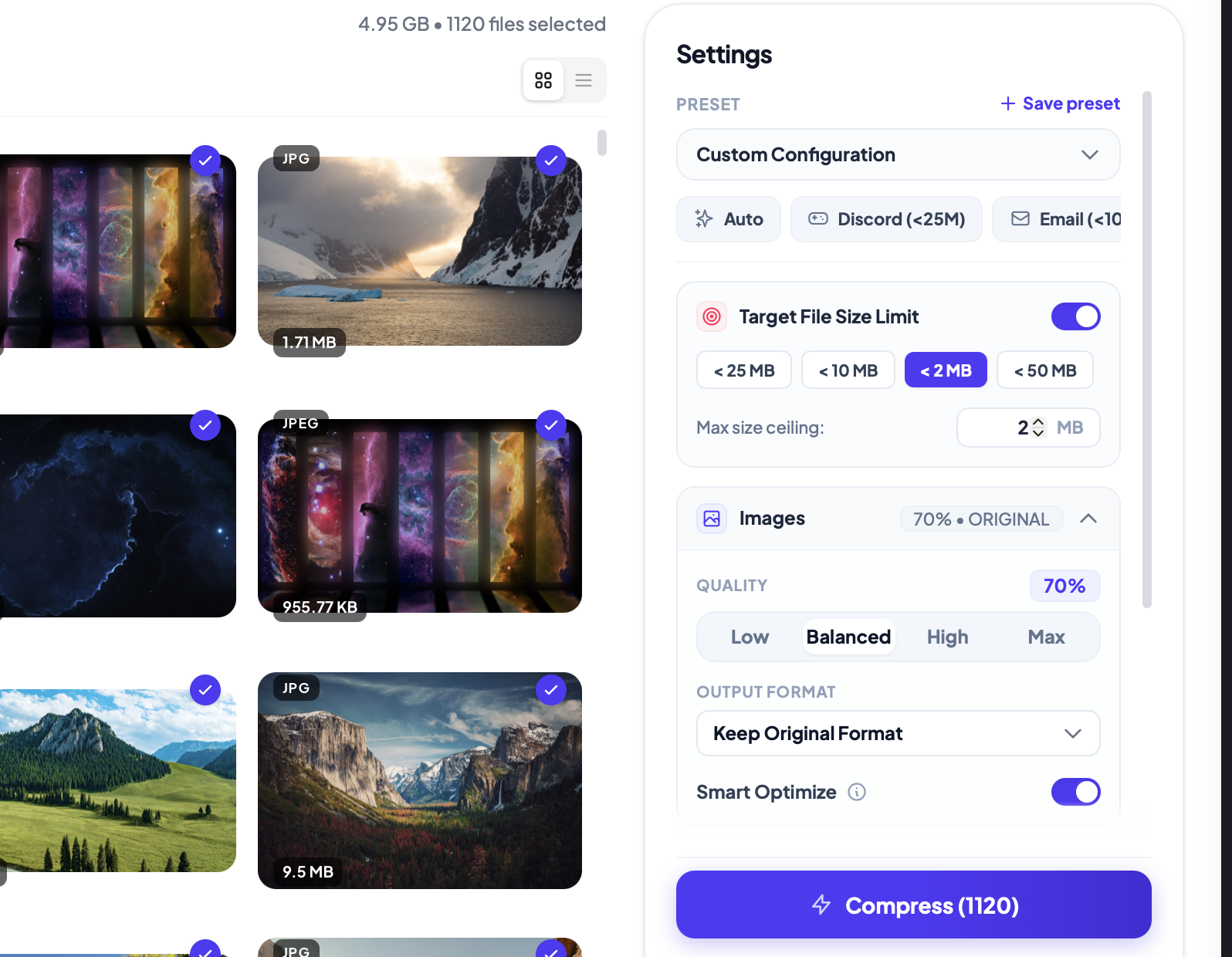
- Quality slider — set exactly how aggressive the compression is
- Target file size cap — guarantee no output file exceeds a specific size (useful for CMS upload limits)
- Format selection — convert to WebP or keep original format
- Smart Optimize — per-image intelligence that skips re-compressing already-optimized files
When to Use Each
TinyPNG is the right tool when:
- You're compressing 1–20 images occasionally
- You don't want to install anything
- You only need PNG and JPEG support
- Speed of access matters more than speed of processing
Desktop batch compression is the right tool when:
- You're regularly processing more than 20 images at a time
- You need folder structure preserved after compression
- Privacy or compliance prevents uploading files
- You work with WebP, AVIF, HEIC, TIFF, video, or GIF
- You want a recurring automated workflow via Folder Watch
- You're doing this often enough that a one-time purchase beats ongoing monthly fees
The Practical Summary
TinyPNG built a good product for occasional, small-batch use. The upload model is appropriate for that scope.
The upload model breaks down at production volume — not because TinyPNG is bad, but because upload bandwidth and manual batch cycles are hard constraints that scale linearly with image count.
Local desktop compression doesn't have upload bandwidth as a bottleneck. It scales with your CPU. For teams doing this at volume, the workflow question answers itself.
Get the Desktop App Link
Enter your email and we'll send you the download link — open it on your Mac or PC.
We'll send the link and a demo video. That's it.