FastCompressor App
Offline batch compression
If you've ever tried to compress a thousand images using an online tool, you know the drill.
You pick 20, upload, wait, download a ZIP, unzip, sort them back into the right folder, go back, pick the next 20. Repeat 55 times.
We decided to actually benchmark what it looks like to do this properly — locally, in one shot, with no uploads involved.
The Test Setup
We put together a real-world batch: 1,120 images pulled from the kind of mixed-source folder a design agency, ecommerce team, or photographer would actually have. Raw exports from cameras, PNG screenshots, high-resolution stock photos, delivery assets for clients — everything mixed in together.
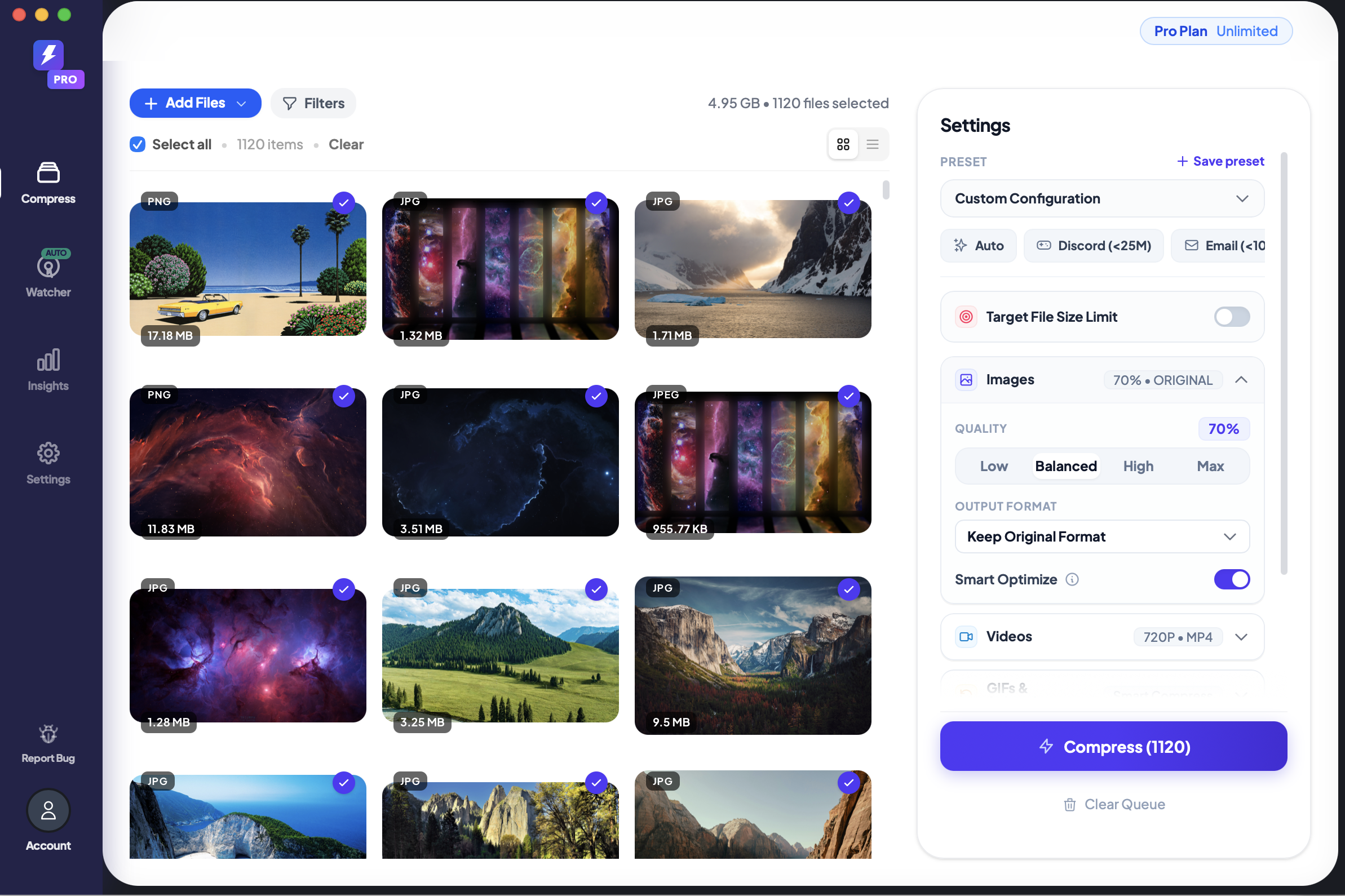
Total original size: 4.95 GB
Settings used:
- Format: Keep Original (no forced conversion)
- Quality: 70% (balanced)
- Smart Optimize: ON (adapts per-image to avoid over-compression)
- Target file size cap: under 2 MB per image
The Result
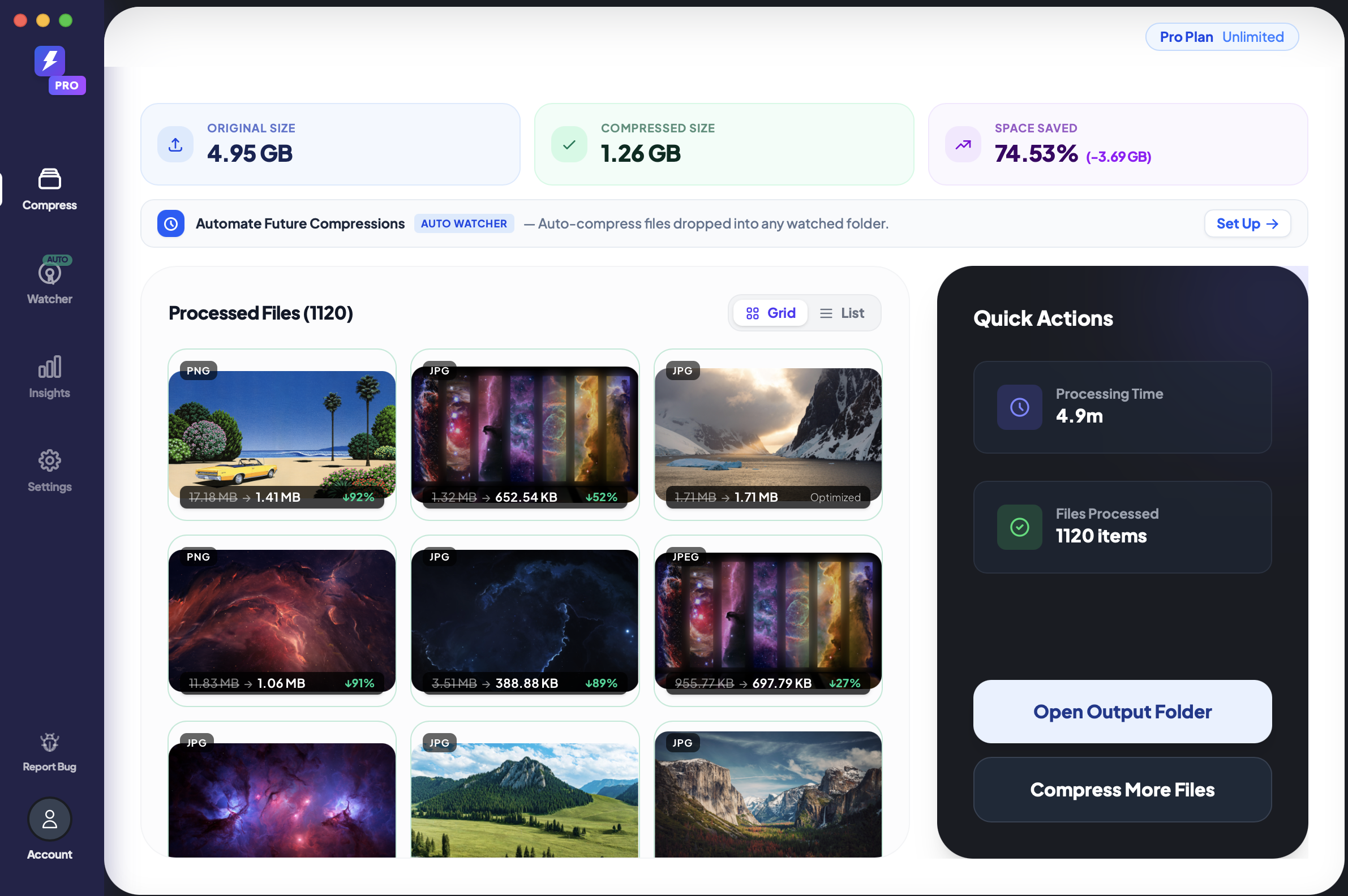
| Metric | Value |
|---|---|
| Total files | 1,120 images |
| Original size | 4.95 GB |
| Compressed size | 1.26 GB |
| Space saved | 74.53% (−3.69 GB) |
| Total processing time | 4 minutes 54 seconds |
| Files uploaded to any server | 0 |
That's 1,120 files — not 20, not 100 — done in under 5 minutes, with every file staying on your hard drive the entire time.
What Compression Actually Looked Like Per File
The range was wide, which is exactly what you'd expect from a real-world mixed batch:
| Image type | Before | After | Savings |
|---|---|---|---|
| PNG — large scene photo | 17.18 MB | 1.41 MB | 92% |
| PNG — dark scene/ruins | 16.35 MB | 1.85 MB | 89% |
| PNG — lightning/sky | 11.83 MB | 1.06 MB | 91% |
| JPG — space nebula | 3.51 MB | 388.88 KB | 89% |
| JPG — dark corridor | 1.32 MB | 652.54 KB | 52% |
| JPG — mountain glacier | 1.71 MB | 1.71 MB | Already optimal |
| JPEG — nebula panorama | 955.77 KB | 697.79 KB | 27% |
The Smart Optimize mode handled already-compressed files correctly — it didn't force a second compression pass and bloat them. Files that were already near-optimal saw small gains or were left mostly intact.
Quality vs. Size: The 84% Test
The aggregate number is useful, but the question that matters for most people is: what does 74% savings actually look like visually?
We ran a side-by-side quality comparison on a Yosemite landscape photo — the kind of high-quality image you'd use on a hero banner or portfolio page:
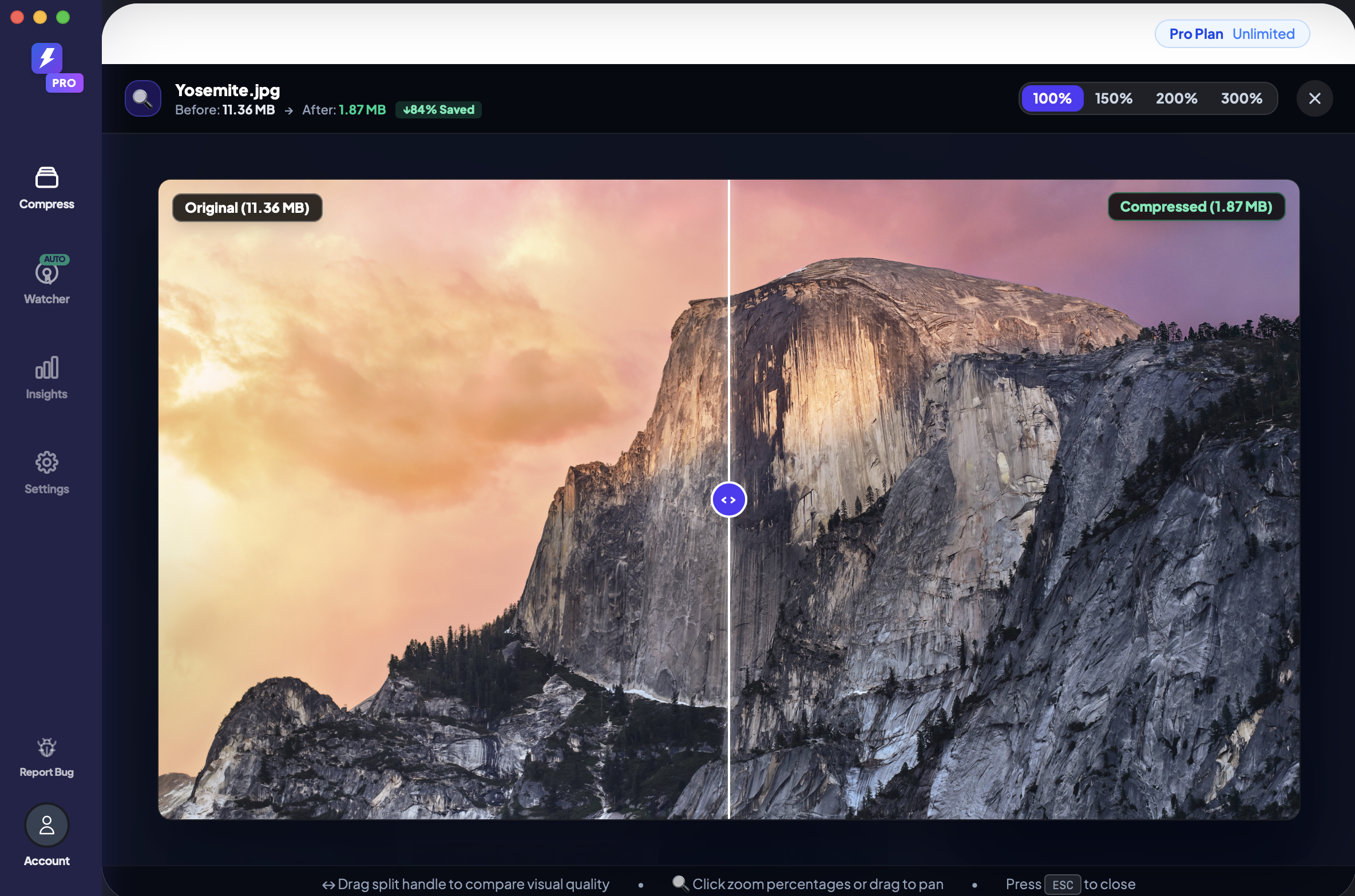
11.36 MB → 1.87 MB. 84% reduction.
At normal viewing distances on screen — and especially after being served through a CDN — the difference is not perceptible to a human viewer. The same image that was slowing down your page now loads in a fraction of the time.
Watching It Work: The Batch In Progress
At the 3% mark (112 of 1,120 files done), the queue was already moving at pace — one active, 1,007 in line, no stalling, no error prompts.
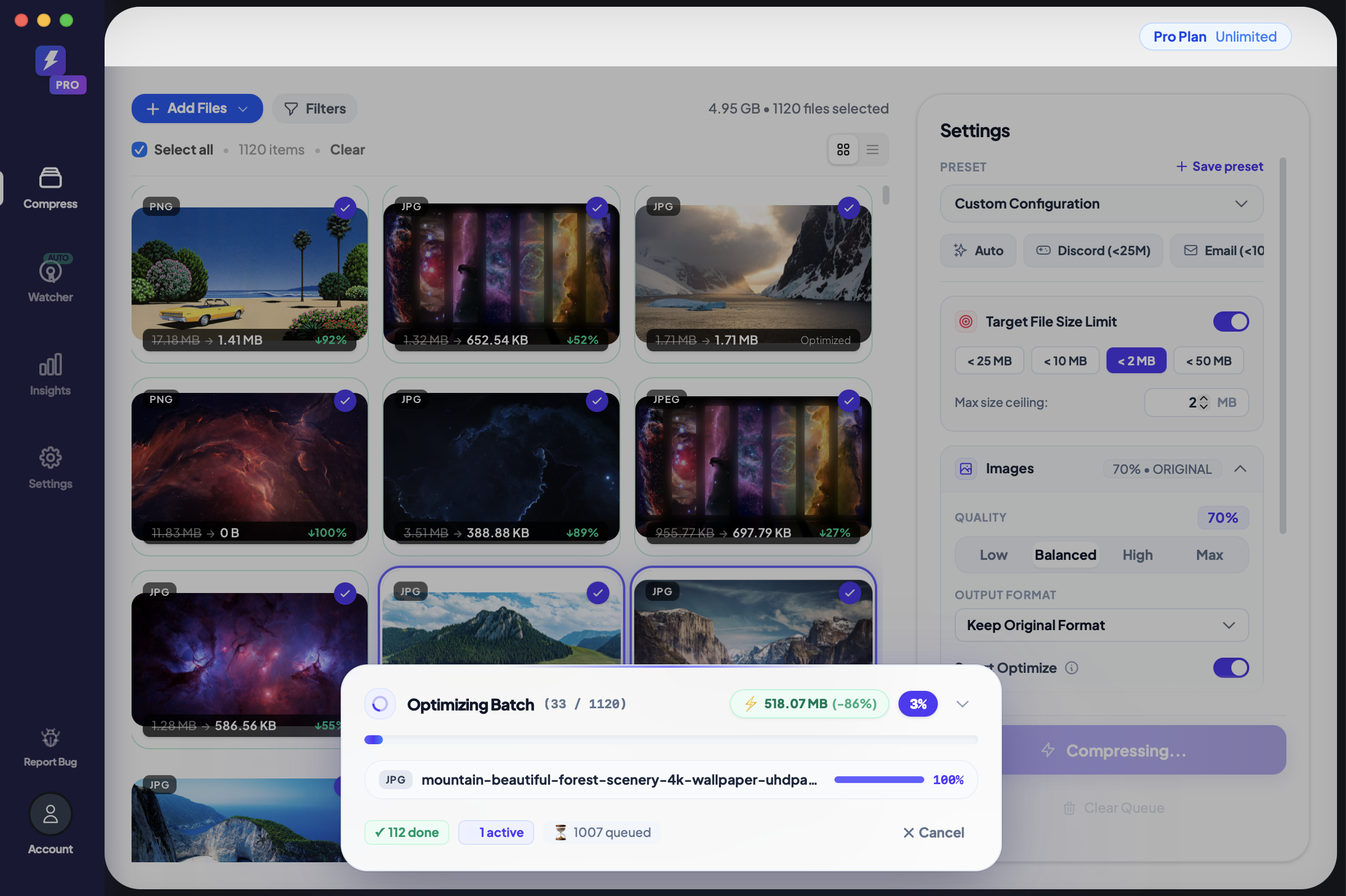
The full 1,120 files ran without a single manual intervention. No "file too large" errors. No format rejection dialogs. No upload queue timeouts.
Why This Isn't Possible With an Upload-Based Tool
Web-based compressors work by sending your file to their servers, compressing it there, and streaming it back. That model has hard ceilings:
Upload bandwidth is almost always the bottleneck. A typical home or office connection uploads at 10–50 Mbps. Uploading 4.95 GB at 20 Mbps takes about 33 minutes — before any processing happens.
Batch size limits are real and intentional. TinyPNG caps you at 20 files per session on the free tier. Even paid plans have file-count and file-size limits per API call.
Browser memory limits mean very large files crash the tab before they upload. A 17 MB PNG is not unusual for a raw export — but it's enough to trigger out-of-memory failures in browser-based tools.
Privacy exposure is a non-negotiable blocker for many workflows: client deliverables, legal documents, medical imaging, anything under NDA. You can't upload what you're not allowed to share.
The local processing model doesn't have any of these constraints. Your CPU handles everything. The files never leave your machine.
The Settings Panel: What You're Actually Configuring
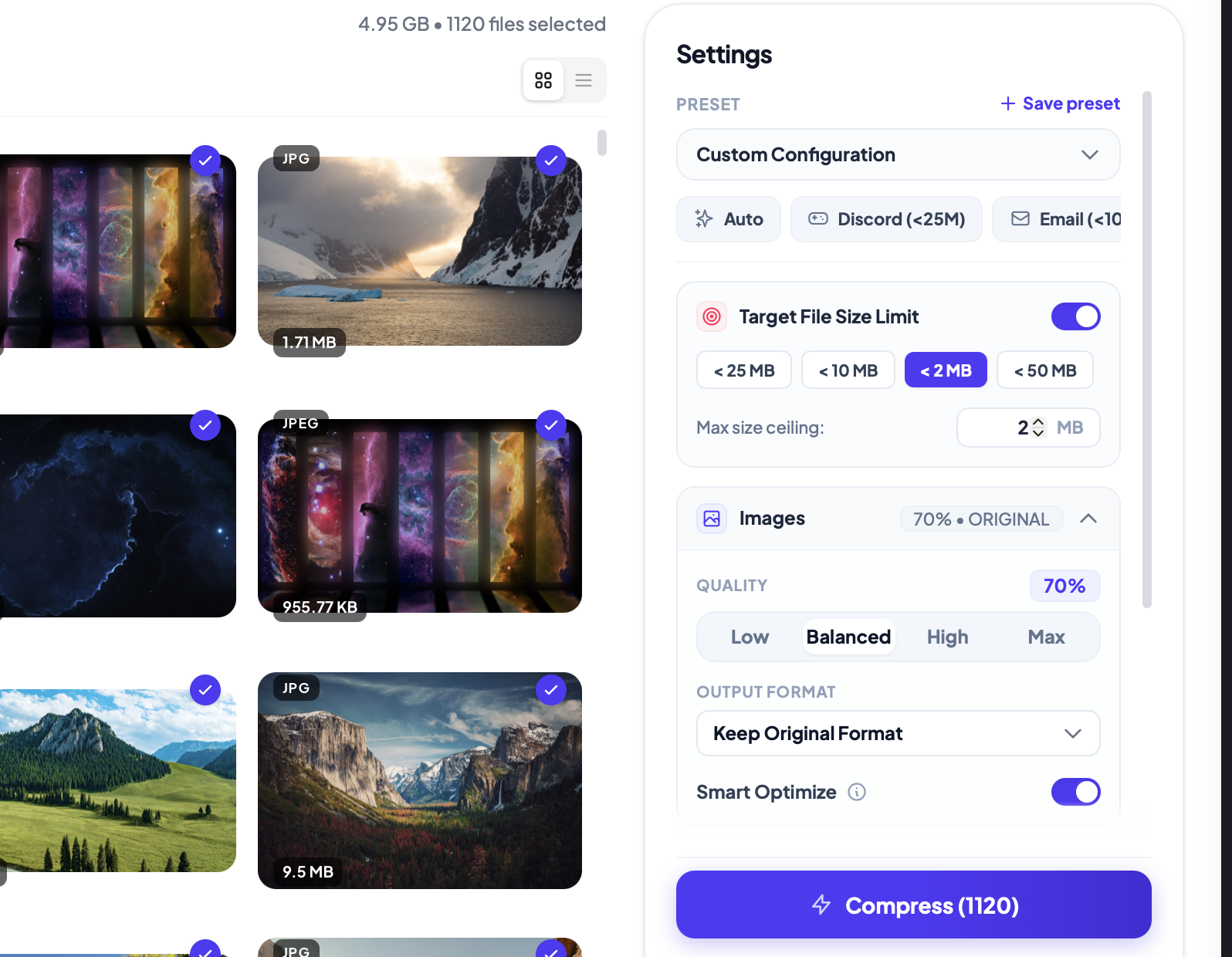
The settings that mattered for this benchmark:
- Quality 70% — hits the sweet spot between visual quality and file size for mixed-content batches
- Target file size cap (< 2 MB) — ensures no single file exceeds the limit, useful when uploading to a CMS with size restrictions
- Keep Original Format — maintains your PNG/JPG/JPEG/WebP mix without forced conversion
- Smart Optimize — skips re-compressing files that are already near-optimal, preventing the size increase that naive re-compression can cause
Folder Watch: The Set-and-Forget Mode
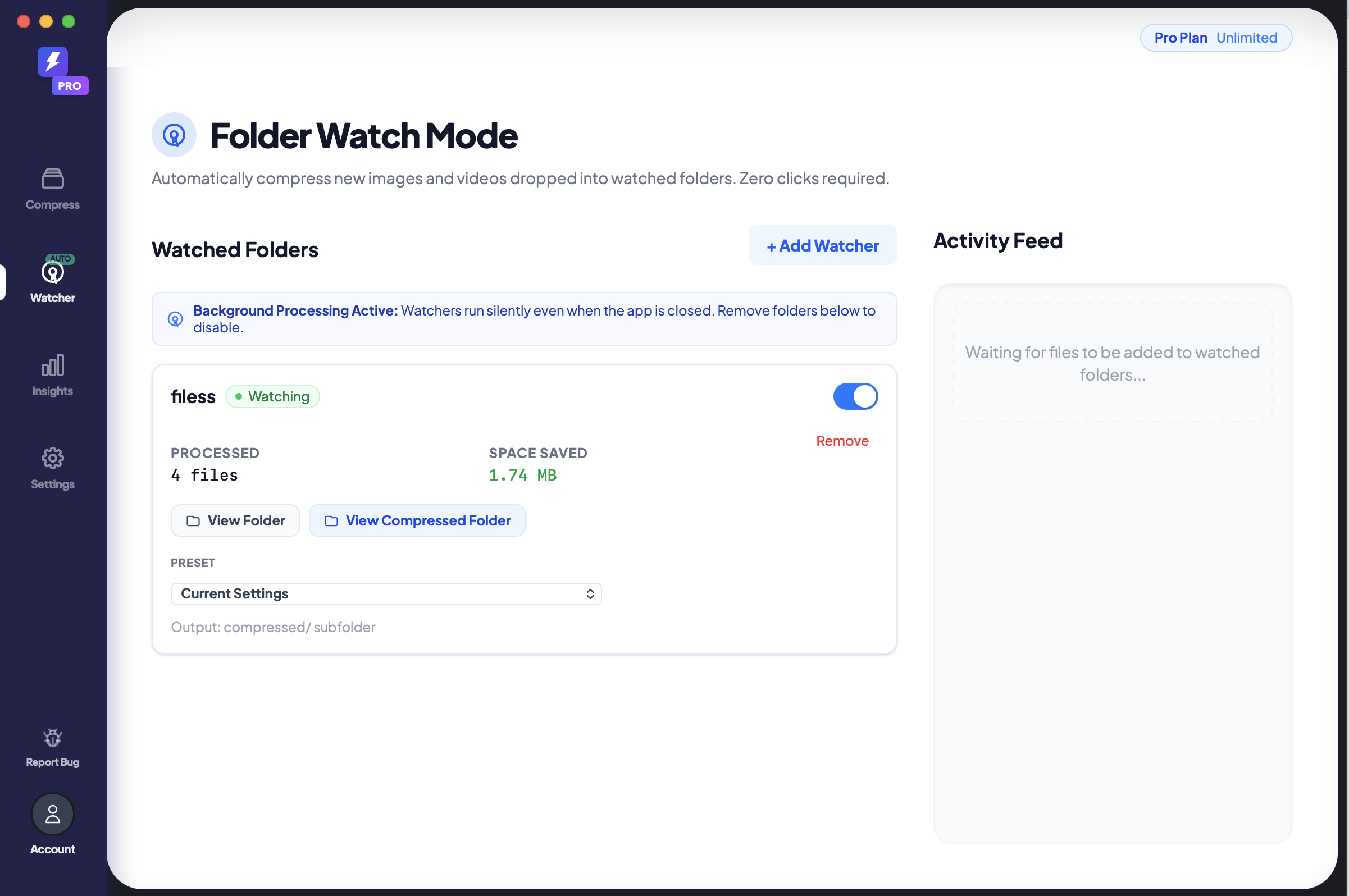
For recurring workflows — Lightroom exports, Figma handoffs, screenshot tools that dump into a folder — the Folder Watch mode removes even the manual drag-and-drop step.
You point it at a directory. Every file that lands in that folder gets automatically compressed as it arrives. No clicking, no scheduling, no batch job.
How to Run This Yourself
- Download FastCompressor (Mac or Windows) from fastcompressor.com/download
- Drag your folder into the app — it loads the entire folder tree, including subfolders
- Set your quality, format, and optional target file size cap
- Click Compress — that's it
Your original files are overwritten in-place (or saved to a separate output folder if you prefer). The folder structure is preserved exactly as-is.
The Honest Summary
Online tools are fine for 1–5 images. We're not trying to replace them for that use case.
For anything above a few dozen files — especially for recurring production workflows where you're compressing new assets regularly — the upload model breaks down. The time cost is in the transfer, not the compression.
Local processing eliminates that bottleneck entirely. 1,120 images, 4.95 GB, under 5 minutes.
No uploads. No queue. No waiting.
Get the Desktop App Link
Enter your email and we'll send you the download link — open it on your Mac or PC.
We'll send the link and a demo video. That's it.